A few months of Apple Watch ECGs quickly become a long list of dates. The recording you actually want to show your doctor is often the one from the evening your heart fluttered on the sofa, not simply the newest one. A little organization turns that list into a short, clear story.
Start with the original recordings in Health
Your Apple Watch saves each ECG to the Health app. On your iPhone, open Health, go to Heart and then Electrocardiograms (ECG). There you can see the waveform, Apple's classification, heart rate and any symptoms you logged at the time.1
If you only need one recording, Apple's own PDF from Health may be enough. ECG Tracker+ becomes useful when you want to compare several recordings, add measurements, and keep your own notes and tags alongside them.
Find the right ECG quickly
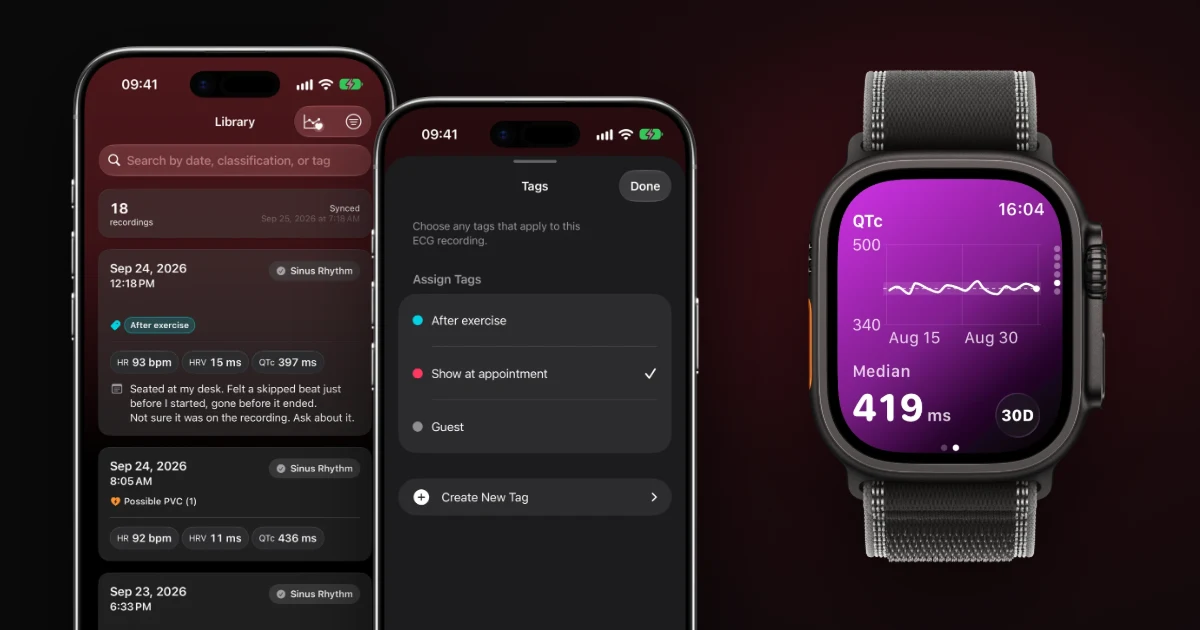
ECG Tracker+ imports your recordings into a Library that you can search by date, Apple classification or tag.
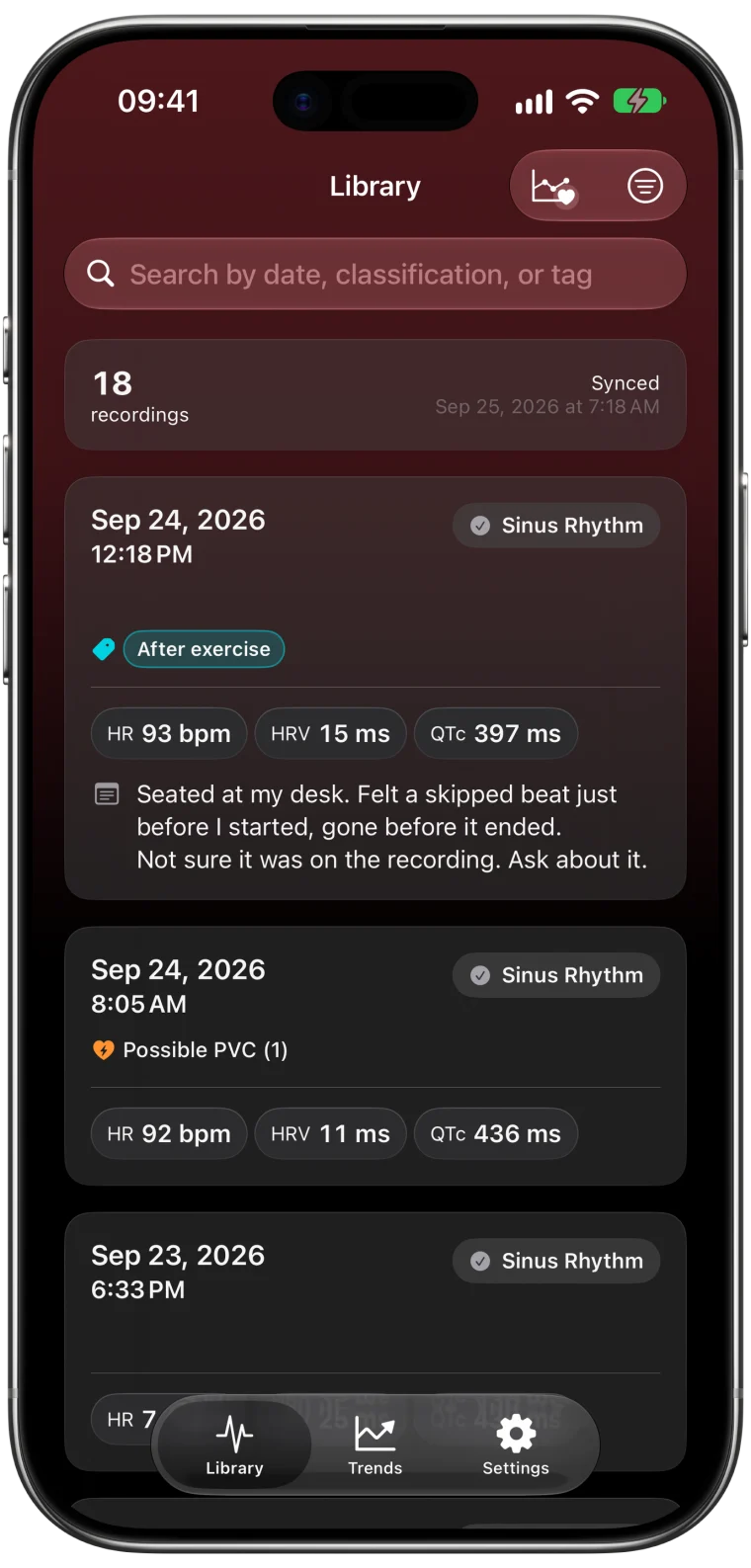
When the list grows long, tap the filter button to narrow it by classification, date range, notes, signal quality, tags, findings or measurements. If a recording you expect is missing, Clear Filters is the first thing to try.
If automatic import is turned off in Settings → Library, tap Add ECG recordings to choose which ECGs to bring in.
Tag the recordings you want to discuss
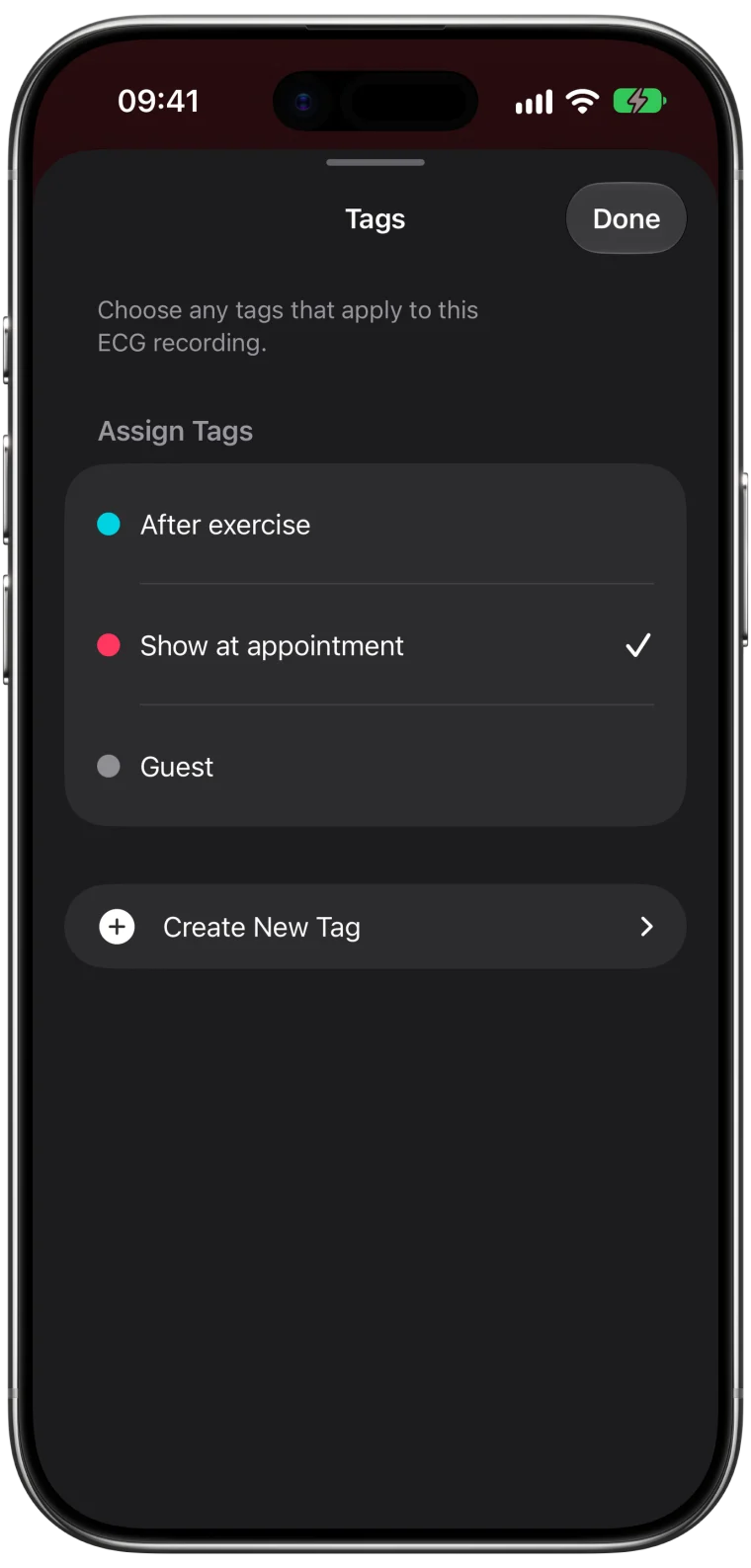
A tag is the simplest way to collect related ECGs without giving them a medical label you are not sure about. A neutral name like Show at appointment works well.
- Open the ECG and tap Add Tags.
- Tap Create New Tag, type the name and tap Create and Select.
- Tap Done.
Later, filter the Library by that tag to see the whole group at once. Tags describe the recording. They never change the waveform or Apple's classification.
Write a short note while you still remember
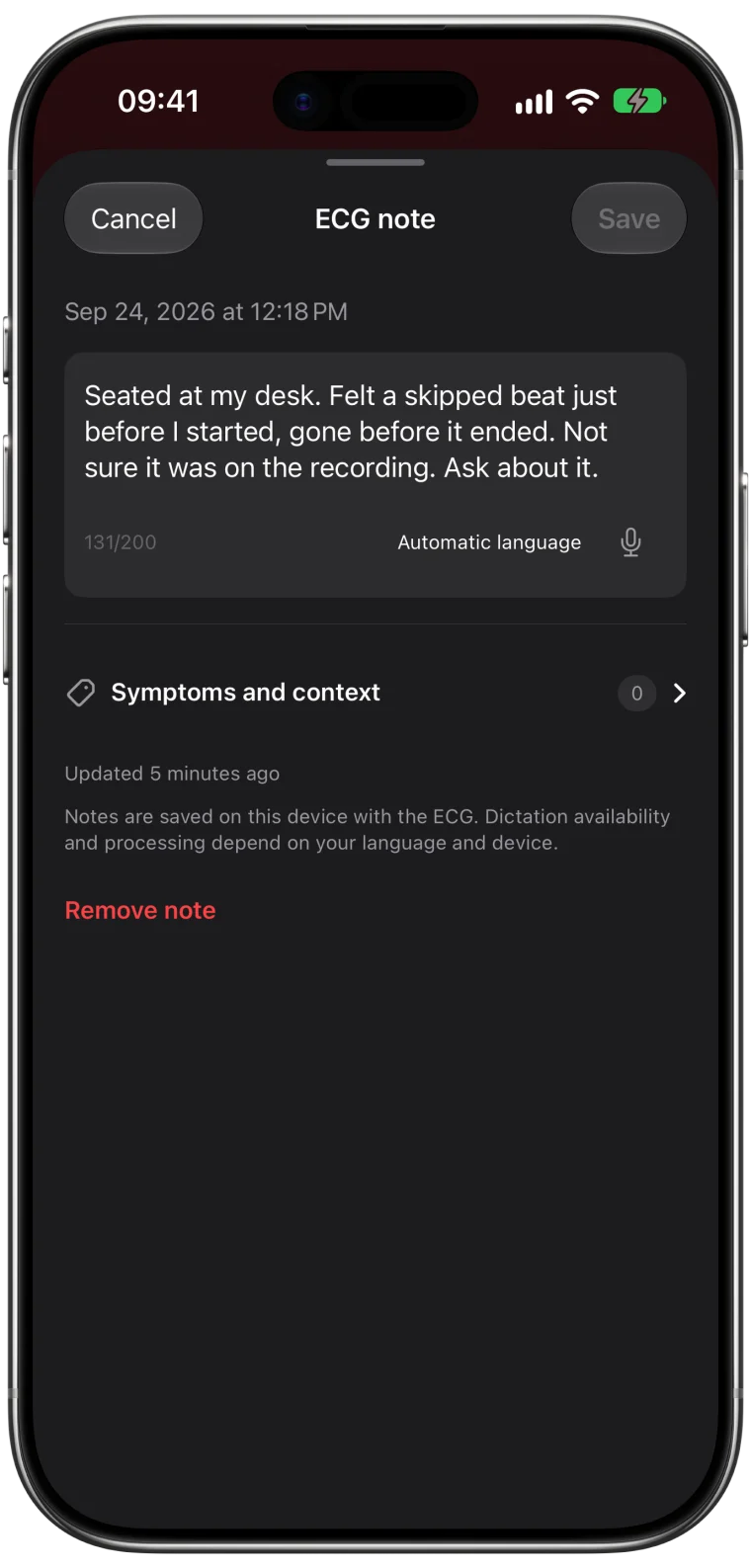
Memory fades fast. A note written the same day is worth more than a detailed account weeks later. Each ECG has a note field of up to 200 characters. Open the ECG, tap the note button, write the essentials and tap Save.
Here is a fictional example that fits:
Seated at my desk. Felt a skipped beat just before I started, gone before it ended. Not sure it was on the recording. Ask about it.
Notice what it includes: what you were doing, what you felt, how it relates in time to the ECG and your question. It describes the experience without trying to name a cause.
Put it together before the visit
A few minutes the day before your appointment is enough.
- Filter the Library by your appointment tag.
- Open each ECG and check the date, time and note.
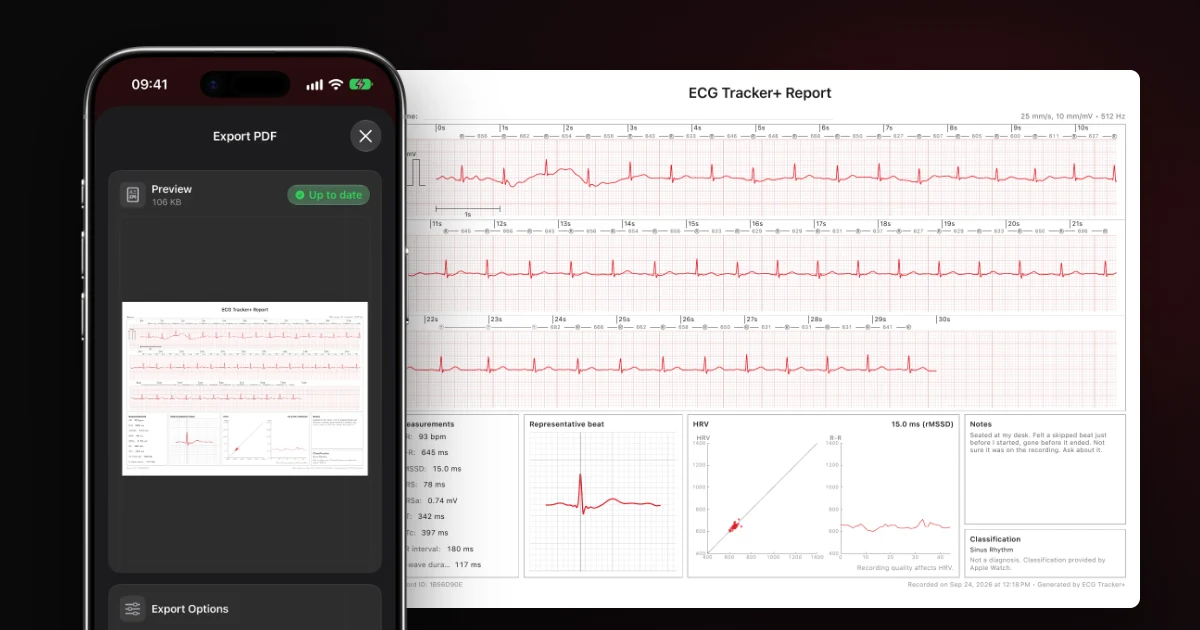
- Export a PDF for each recording you want to share. The PDF export guide explains the options.
- Ask the clinic how they prefer to receive files, and check each report for personal details before sending.
If you took recordings for a specific symptom, bring a simple timeline too: when it started, how long it lasted and what helped. Doctors use symptom diaries alongside longer monitors for the same reason.2
Keep the whole picture fair
Include the recordings that look ordinary as well as the ones that worried you. A single strip cannot show how often something happens, and the quiet recordings are part of the story.
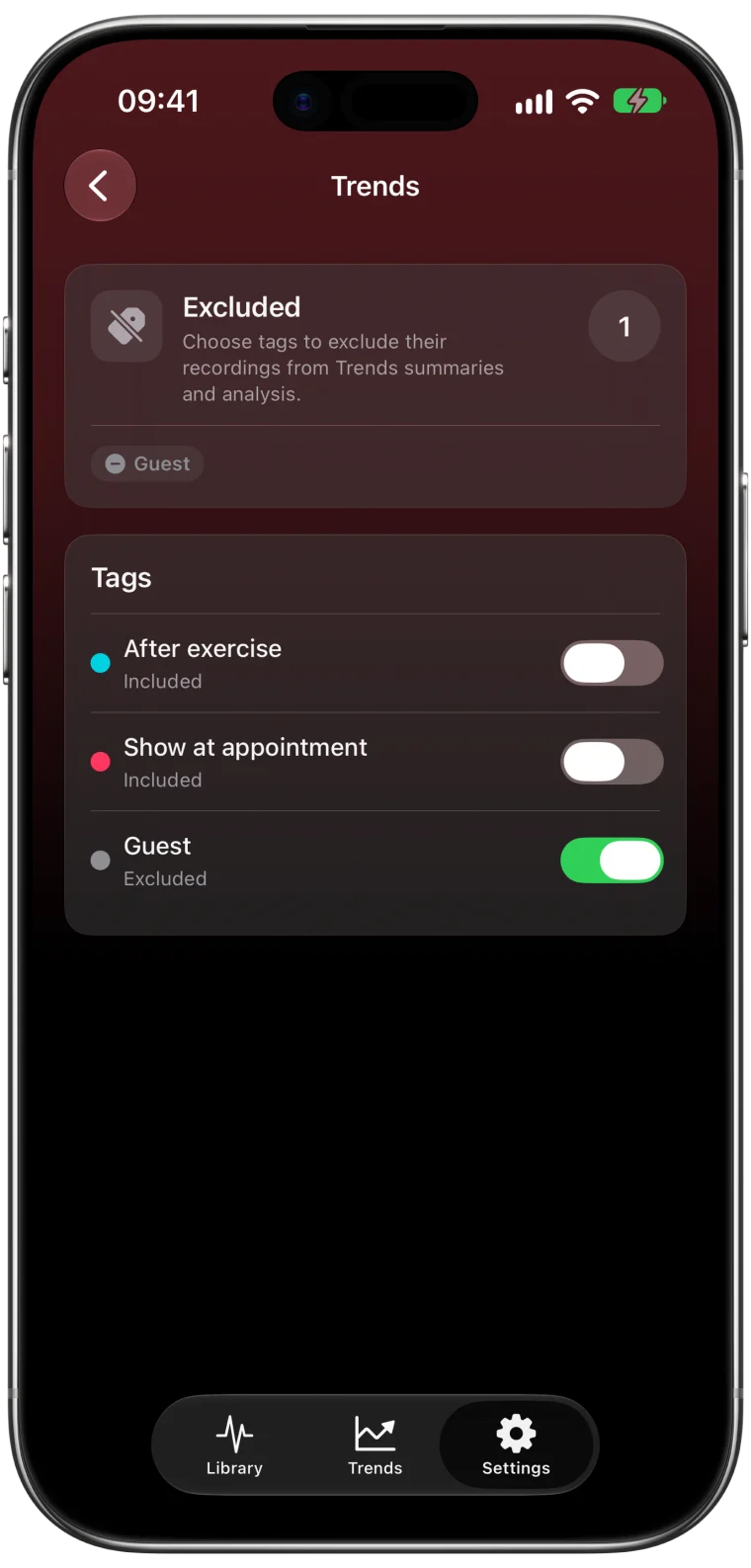
If a family member used your Watch, tag and exclude their ECG so it does not mix with yours. The guide to excluding another person's ECG shows how.
Preparing recordings helps a conversation. It should never delay care for chest pain, fainting, severe shortness of breath or other worrying symptoms.
Frequently asked questions
How long can an ECG note be in ECG Tracker+?
Each ECG note can hold up to 200 characters. Keep longer accounts in a separate document and reference the ECG's date and time.
Do tags or notes change the Apple Health recording?
No. Tags and notes live in ECG Tracker+. The original ECG and Apple's classification in Health stay exactly as they were.
Should I bring every ECG I have ever recorded?
Usually not. Bring the recordings linked to your question, plus a few ordinary ones for comparison. Ask the clinic whether they want more.